 Decks
DecksiPhone
Start with the steps below. Editing tools appear beneath the canvas; tap the active tool to hide or show its controls.
iPad
Use the same task steps. The sidebar gives you access to Layout Builder, Templates, and Projects. In a wide editor window, controls can sit alongside the canvas; narrower windows use the compact panel. A missing control may be inside a collapsed section or the page’s options.
Add text or a logo
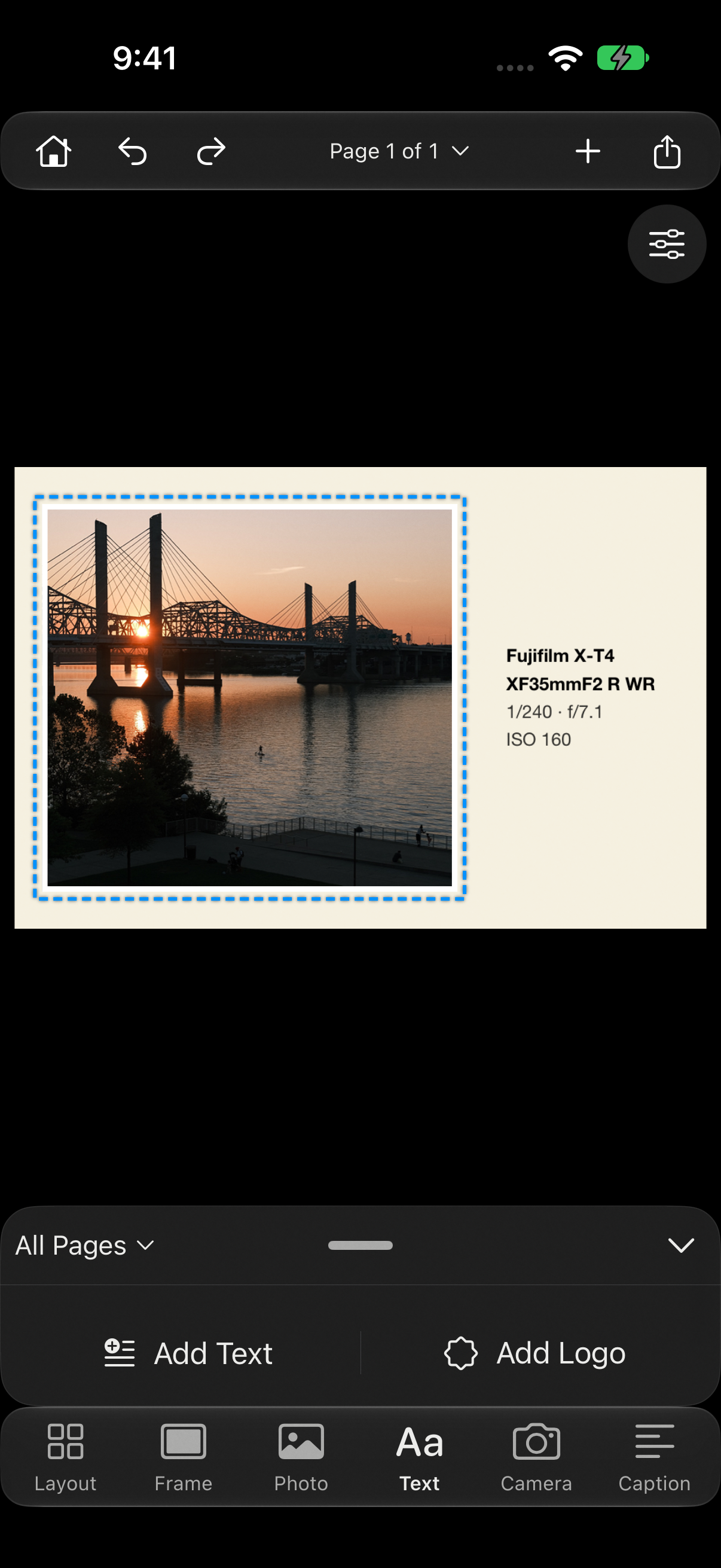
- Use Text in the editor or the add menu to place text on the page. Tap the text to select it, then tap Edit Text to change its wording. Adjust its appearance in the text controls.
- Manage reusable logos in Settings → My Logos. Use the editor’s Logo tool to place one in a design.
- Text on the canvas becomes part of the exported image. Use Caption for posting text that you want to copy separately.
Insert photo information
- Type ; at the start of a word in a supported text or caption field to open the variable picker. Choose the information you want to insert.
- Photo variables use information from the current image. Set up your own values in Settings → Custom Variables, or add gear and places in My Gear & Places.
- Check the resolved text when changing photos. An image without the requested metadata cannot fill that value automatically.
Mac
Choose Edit → Add Text (Shift-Command-T), then select the text and use the Text inspector to change its appearance. Check the resolved wording when changing photographs. Canvas text becomes part of the image; Caption is separate posting text.