 Decks
DecksiPhone
Follow the workflow below on your iPhone. Use the Mac notes for desktop-specific controls.
iPad
The same workflow applies on iPad. Editing controls may appear beside the canvas in a wide window instead of below it.
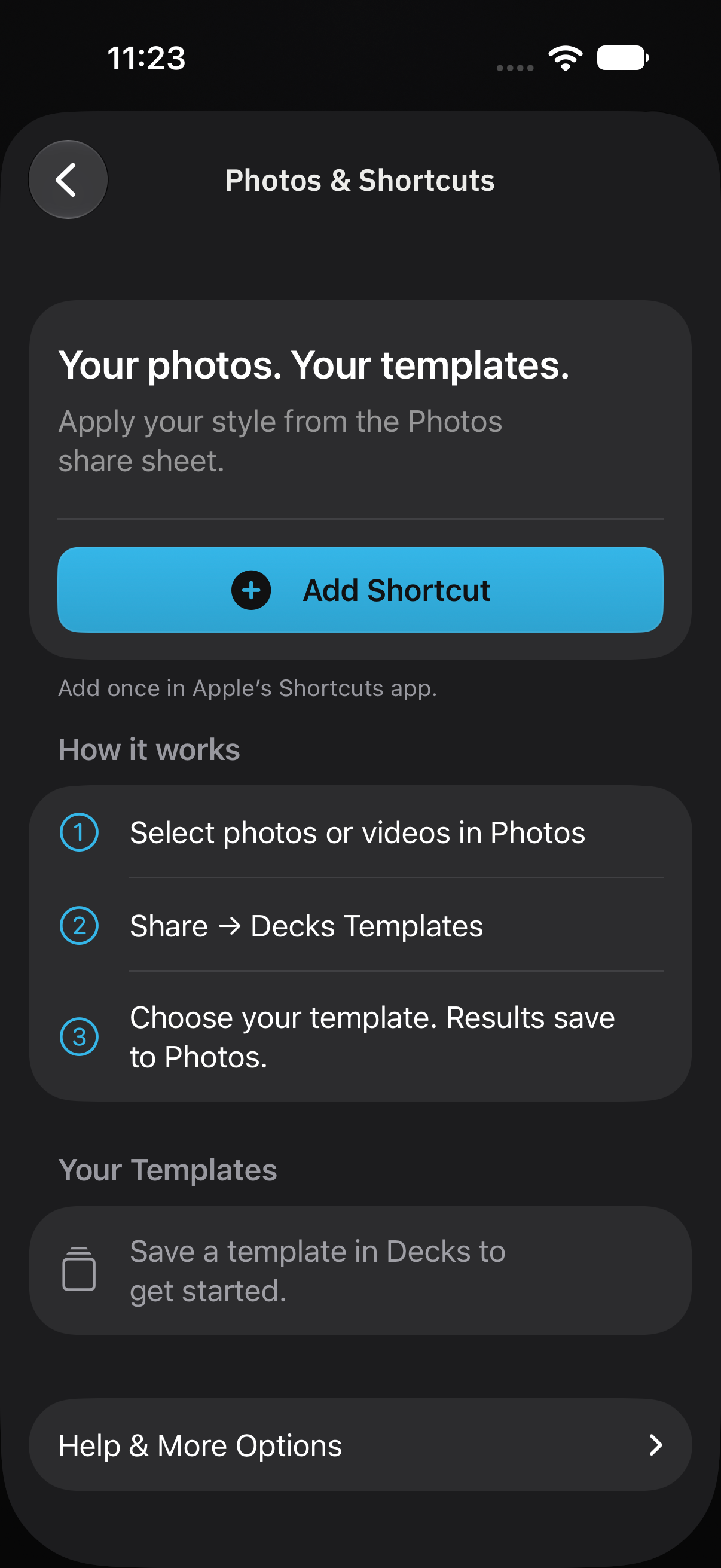
- Save a template in Decks.
- On iPhone or iPad, open Settings → Photos & Shortcuts and add the Decks Templates shortcut.
- Select one or multiple still photos in Apple Photos. Open Share, choose Decks Templates, and choose your saved template.
- Allow the requested photo access. The shortcut applies the design and saves finished copies to Photos.
After setup, the usual template workflow runs without opening Decks. Keep the Photos input connected to Shortcut Input when editing the shortcut. This walkthrough covers still photographs. The Apply Template action returns finished images to the next shortcut action; follow it with Save to Photo Album or Share. Save Photos with Template also accepts videos and may continue processing in Decks.
Saved templates are also available through Decks actions in Shortcuts. You can use them in your own shortcuts, including ones you invoke with Siri or the Action button. Larger jobs or permissions may ask you to continue in the app. If a template is missing, reopen the shortcut and select an available saved template.
Mac
In Shortcuts on Mac, combine Select Photos, Decks’ Apply Template action, and Save File or Save to Photo Album. Choose a saved template in the action. The iPhone/iPad share-sheet setup below is a separate starting route. For file-based unattended workflows, check Decks → Settings → Automation and allow the required folders.