 Decks
DecksiPhone
Start with the steps below. Editing tools appear beneath the canvas; tap the active tool to hide or show its controls.
iPad
Use the same task steps. The sidebar gives you access to Layout Builder, Templates, and Projects. In a wide editor window, controls can sit alongside the canvas; narrower windows use the compact panel. A missing control may be inside a collapsed section or the page’s options.
Start in Templates
- Open Templates → Create Template. Build the layout with the preview photos, then set its background, frames, text, and optional camera details.
- Use Template Preview to try your own photos, show empty photo slots, or preview a repeating batch.
- Save and name the template. Preview photos and their photo details are not saved as template content.
Save from a project
- In Export, tap Save as Template. Name the design and choose whether to include text wording. Photos and crops stay with the project.
- Your template appears in Templates. Tap Use from Photos in Export for shortcut setup instructions.
Use and manage saved templates
- Tap a template in Templates, then choose Use Template to add a new set of photos, or Edit Template to change the design.
- Use Template Options to rename, duplicate, share, delete, or make it your default. Mark favorites to keep preferred designs handy.
- Tap Import Template in Templates to open a shared template file. Camera-detail templates belong in the Camera Details library.
Mac
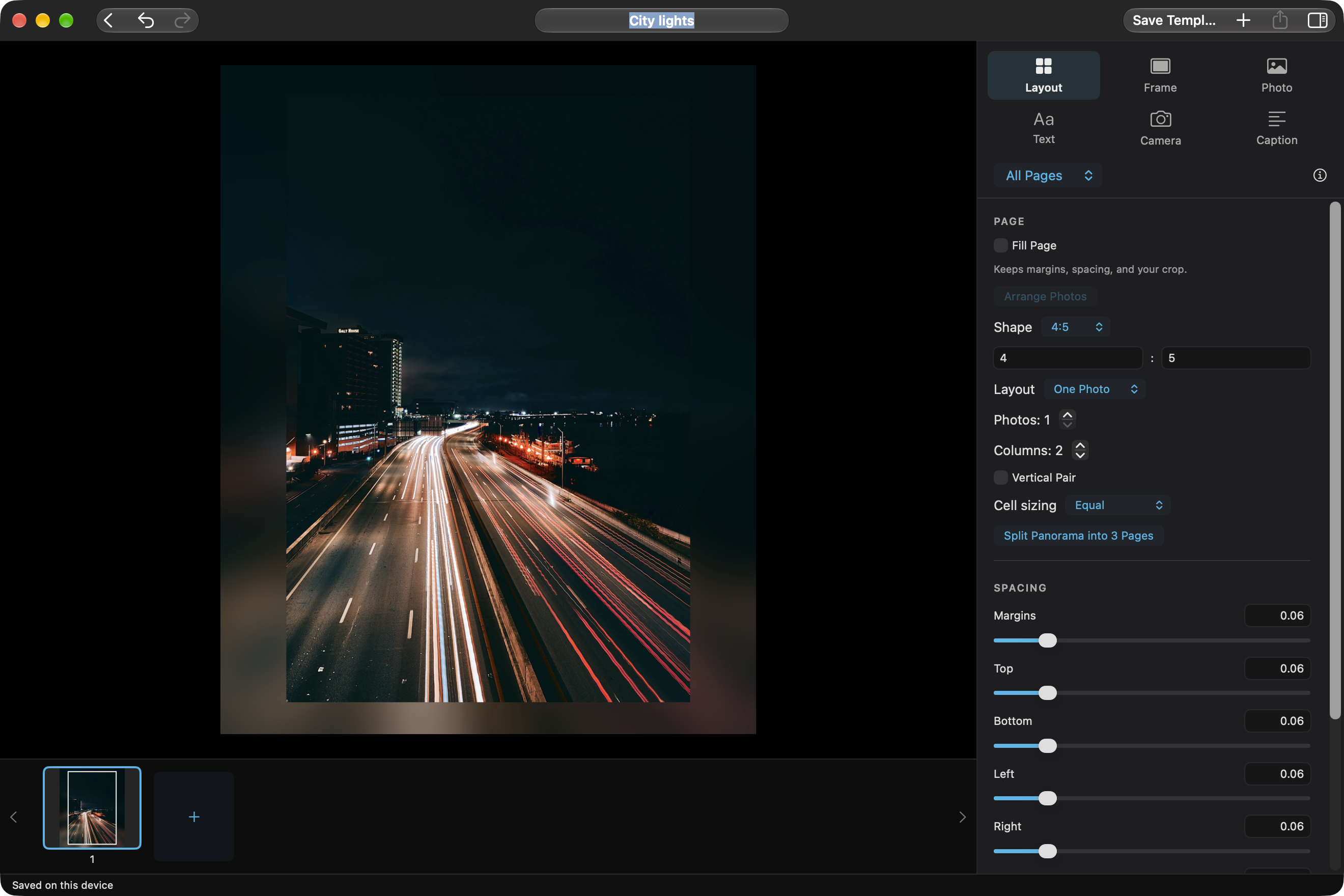
- Finish your layout, then choose File → Save as Template… (Shift-Command-S).
- Name the template and review the saving choices. Open Templates in the library to find the saved design.
- To start a design directly, choose File → Create Template (Option-Command-N). Save the template draft when it is ready.
- Use the saved template with a new set of photographs, check text and photo-specific details, then export the finished pages. A template draft itself is not a finished photo project.