 Decks
DecksiPhone
Start with the steps below. Editing tools appear beneath the canvas; tap the active tool to hide or show its controls.
iPad
Use the same task steps. The sidebar gives you access to Layout Builder, Templates, and Projects. In a wide editor window, controls can sit alongside the canvas; narrower windows use the compact panel. A missing control may be inside a collapsed section or the page’s options.
Choose a starting layout
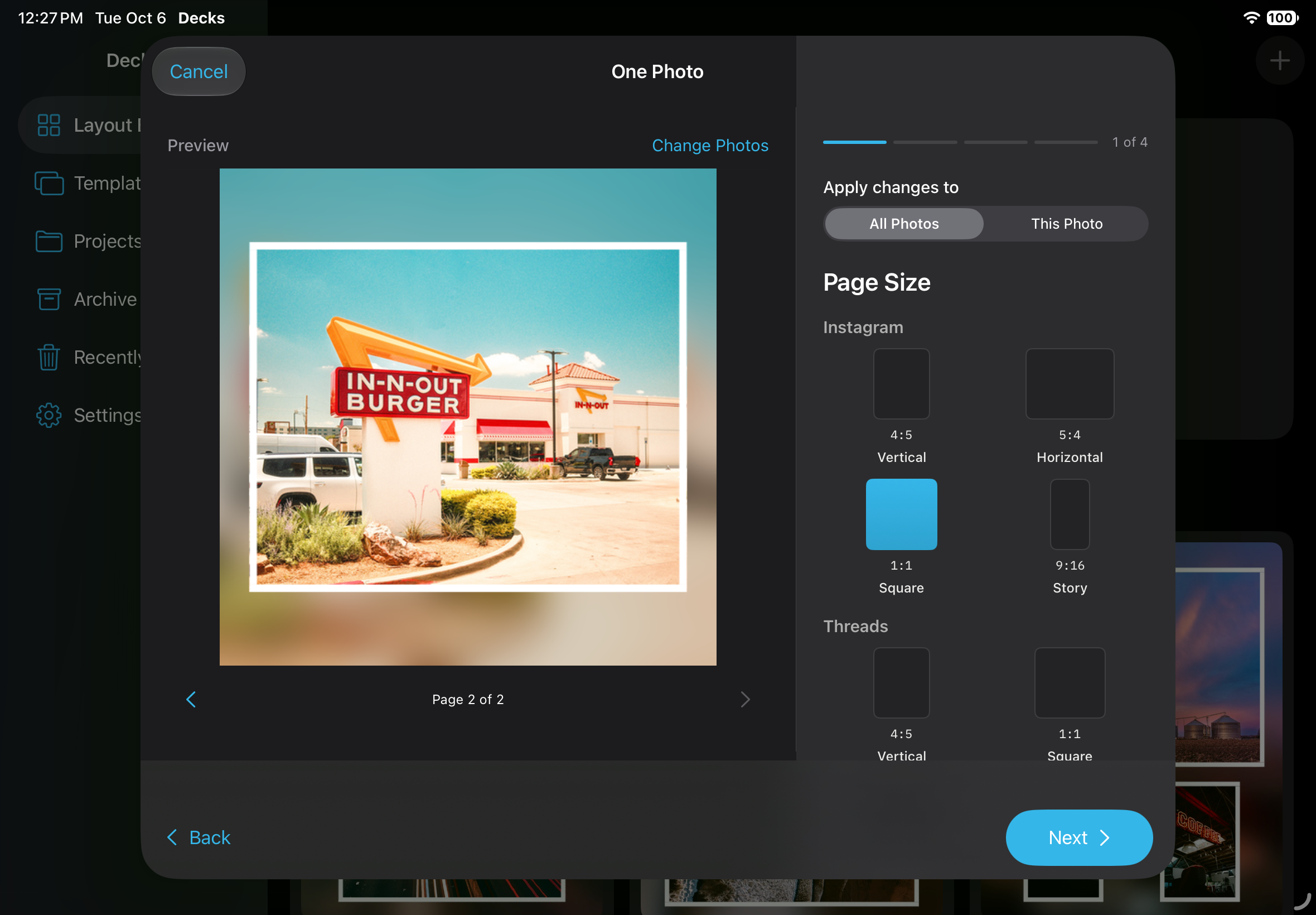
- Open Layout Builder. Choose One Photo, Two Photos, a collage, Panorama, Strip, Contact Sheet, or another starting layout.
- Choose your photos first. Swipe through their previews as you adjust the design.
- Choose a size, background, and frame. Use This Page or All Pages to control which pages change.
- Add optional camera details, then tap Create Project. You can fine-tune everything in the editor.
Two-photo arrangements
- After selecting photos, choose Side by Side or Stacked on the size screen.
- Your chosen arrangement stays selected when you change page shape or go Back and Next. In the editor, open Layout to change it later.
Arrange your starting layouts
- Hold a layout card on Home, then drag it into your preferred position. Decks remembers that order.
- Tap the ⓘ beside Start for a quick reminder of the walkthrough options.
Mac
Use File → Import Photos and Videos… to create a project from files, or open Templates to begin with a saved design. In the editor, use Layout in the inspector to set the shape and arrangement. Mac uses its own workspace; the phone’s step-by-step Layout Builder screens are not the Mac import flow.