 Decks
DecksiPhone
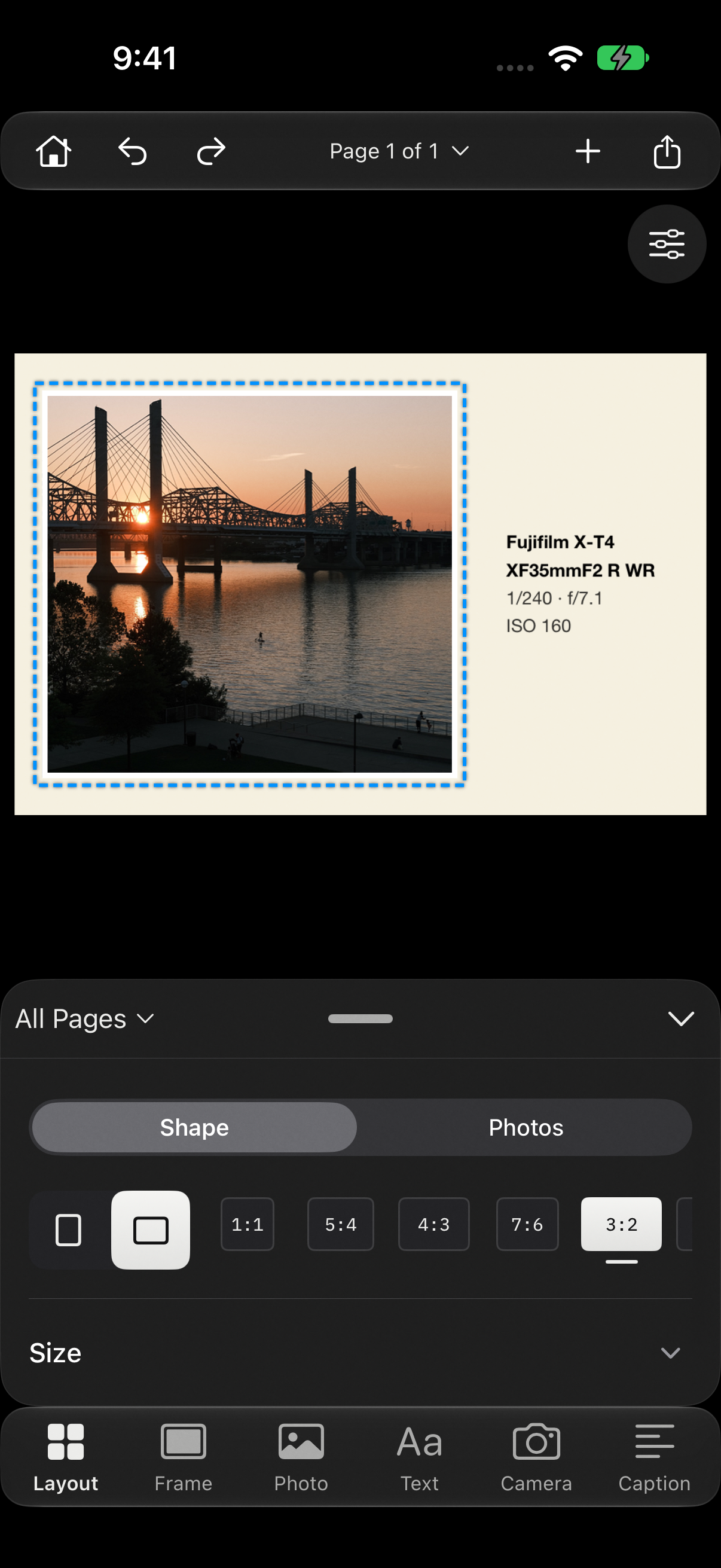
Start with the steps below. Editing tools appear beneath the canvas; tap the active tool to hide or show its controls.
iPad
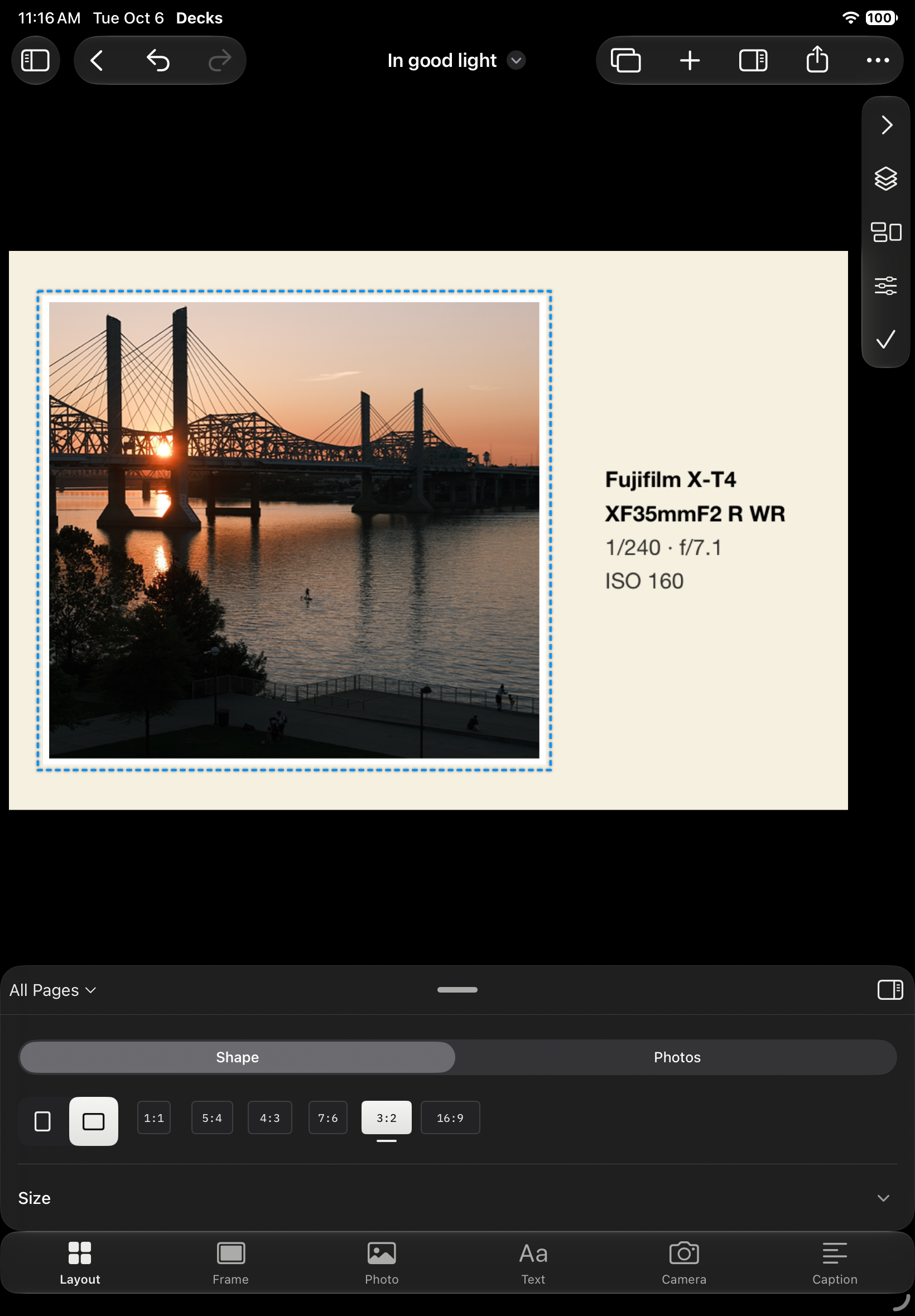
Use the same task steps. The sidebar gives you access to Layout Builder, Templates, and Projects. In a wide editor window, controls can sit alongside the canvas; narrower windows use the compact panel. A missing control may be inside a collapsed section or the page’s options.
Browse and select
- Swipe left or right from the empty canvas margin to change pages. Swipe up from that margin to arrange pages; swipe down to hide details. Customize these actions in Settings → Editor → Gestures, or Gestures in the page menu. Pinch to look closer, then tap Fit to return to the whole page.
- Tap a photo, text, logo, or camera details to select it. A blue dashed outline identifies your selection without adding a border to the exported artwork. Drag to move it. Tap Done to return to browsing. In Freeform, pinch and rotate a selected photo. Photo opens its Crop section; switch to Layer for placement and effects.
- Use Select Item for small or overlapping objects. Select text, then tap Edit Text to write. Dragging a fixed-layout photo adjusts it inside its frame; Photo → Position → Move Freely converts just that page to Freeform.
- Tap Arrange beside the canvas to place the photo left, right, top, or bottom alongside its text and camera details. Cards grow to fit with room around them. Changing the photo or page shape updates the arrangement. Undo restores the whole change.
- Tap Done to leave the selection and browse again. Open the page indicator for Previous, Next, and Arrange Pages.
Find your tools
- The bottom tool strip opens Layout, Frame, Photo, Text, Camera, and Caption. Tap the current drawer’s tool again to hide or show it; tap another tool to switch its controls. Tap a section’s chevron to reveal more controls.
- Details initially fit the controls in each tool. Drag the handle to choose a height for that tool; the photo continuously fits the space above it. Reset panel sizes in Settings → Editor. Tap the active tool to hide its controls and give the photo more room; tap it again to return.
- This Page or All Pages stays beside the details handle across editing tools and remembers your choice as you select objects or browse pages. It controls page layout and frame settings; Photo, Text, and Camera controls edit their selected item.
- Hold a tool to rearrange, remove, or add tools. Settings → Editor → Reset Tool Strip restores the original tools.
- Canvas controls start hidden to give the photo more room. Tap the small Show Controls button at the top right to open the icon rail; the chevron hides it again. The sidebar keeps selection, arrangement, and other object actions. Open Photo in the bottom tool strip for crop, sizing, position, replacement, layers, and clip controls.
- Open Photo and choose Shape for Original, square, or portrait ratios. Switch Orientation turns the shape sideways. This changes only that photo inside its slot; Layout changes the page.
- Crop opens a large workspace. Choose a ratio or Free, drag the edges or crop area, and pinch to refine. Apply saves one undoable edit; Cancel leaves the photo unchanged. Reset Shape restores the layout’s original shape.
Return Home
- Tap Home in the editor to save and return to Projects. Reopen the project there to keep editing.
- Saving a reusable template takes you to Templates. Leaving a starting-layout walkthrough returns to the tab you came from.
Mac
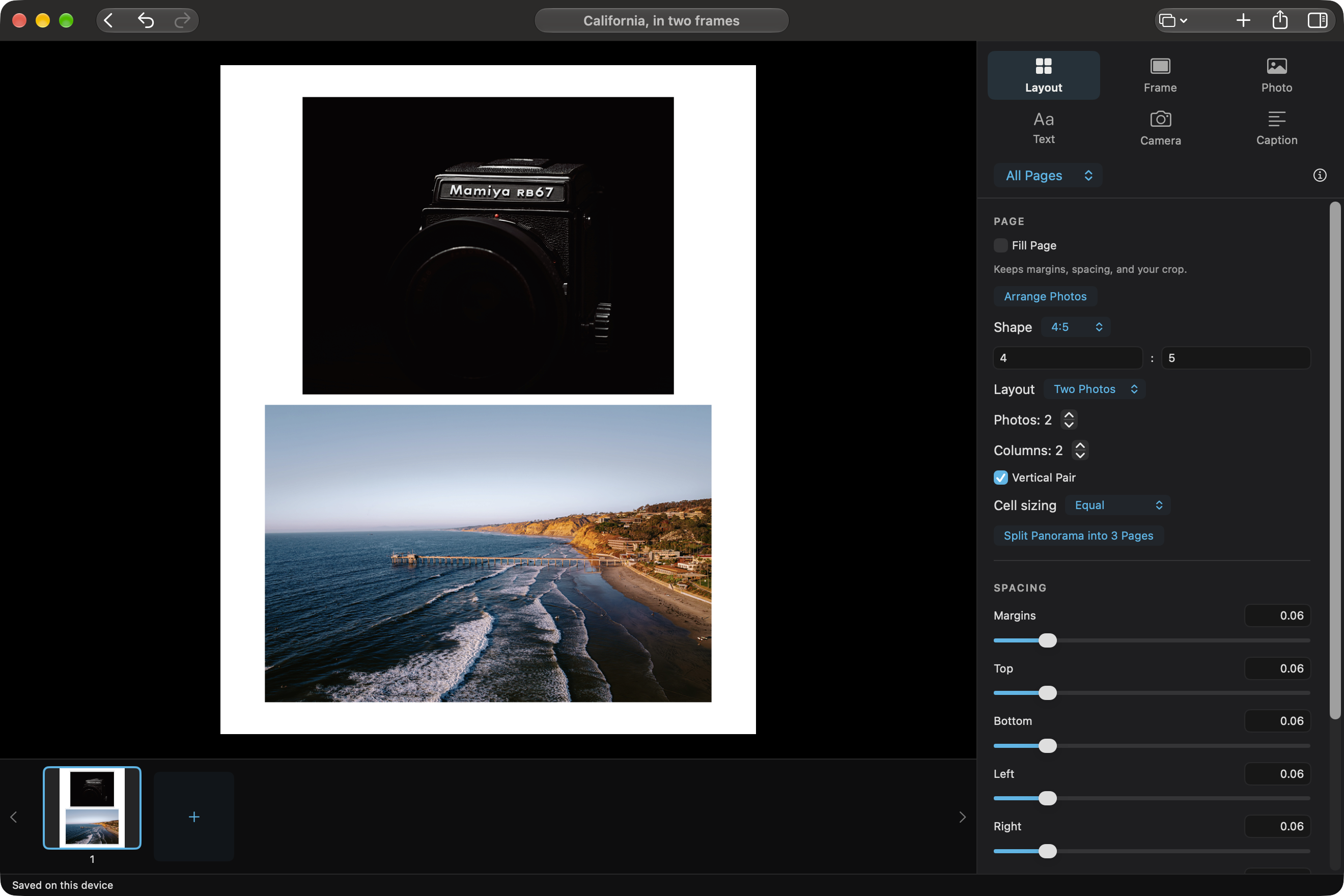
Select a page in the filmstrip and use the inspector to adjust it. Command-I toggles the inspector; Command-0 fits the canvas. The Navigate menu contains page navigation commands. Command-K opens the Command Palette. Use Edit → Undo (Command-Z) and Redo (Shift-Command-Z) to reverse changes. Touch gestures described below apply to iPhone and iPad.