 Decks
DecksFor Aura frames
Make your photos fit your Aura frame.
Aura adds bars beside vertical photos, or zooms in until someone’s head is cut off. Decks lets you lay out your photos in the exact shape of your frame before you upload them, so they fill the screen the way you want.
Free while in beta. TestFlight is Apple’s app for trying new apps before they’re in the App Store. For iPhone, iPad, and Mac.
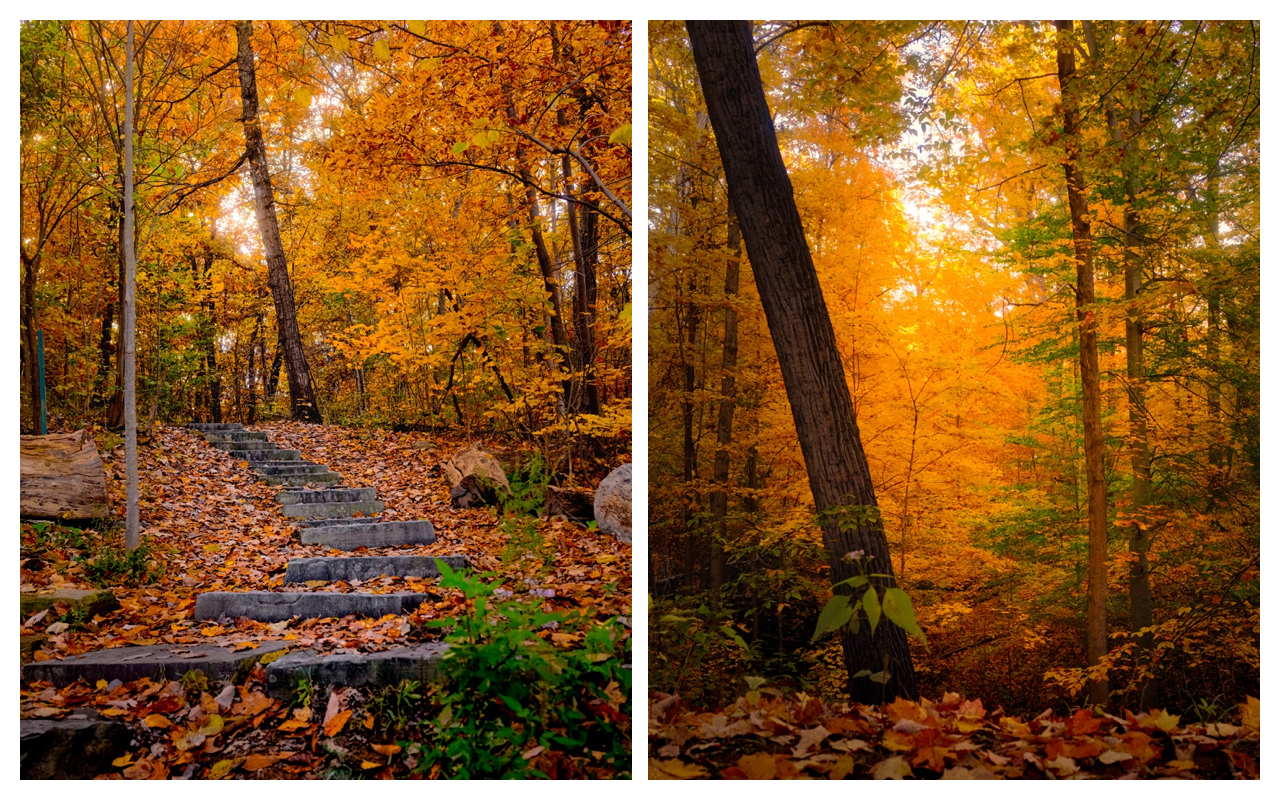
Brian’s photographs, arranged in Decks for an Aura Carver.
The shape of the problem
Vertical photos and Aura frames don’t always get along.
Most Aura frames sit sideways, and most phone photos are taken upright. When the two meet, the frame has to choose. It either shows your photo small with empty space on both sides, or it zooms in to fill the screen and crops off whatever doesn’t fit.
You can go into the Aura app and fix the crop one photo at a time. Or the Carver might pair two of your vertical photos together, but it picks which two.
From your photos to your frame
Lay it out first. Then upload.
Choose your frame.
Match your page shape to your Aura screen: landscape 16:10 for Carver or Carver Mat, or 4:3 for Aspen, Walden, and Ink. Use 3:4 when those frames stand upright.
Add your photos.
Put two vertical photos side by side, give one photo a soft background, or fill the whole screen. Move and crop each photo until it looks right.
Save and upload.
Save the finished image to your Photos, then add it in the Aura app like any other photo.
Decks doesn’t connect to your Aura account. It makes the image, and you upload it the way you already do.
Layouts that work on Aura
A few ways to start.
Choose the photos, the crop, and what goes around them. These are finished images made in Decks, ready to upload through Aura.
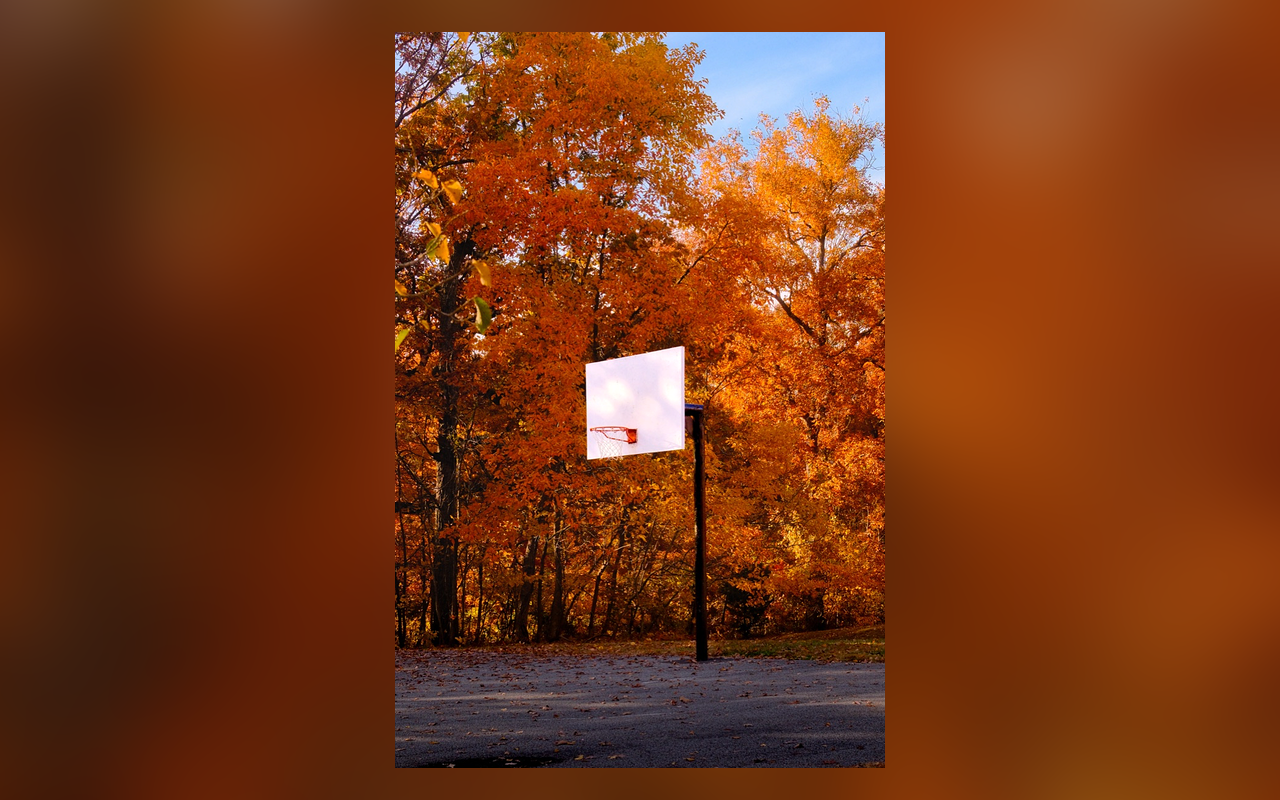


Save any of these as a template, and your next set of photos gets the same look.
Choose the name on your frame
Which Aura do you have?
Use these page shapes in Decks to prepare photos for your frame. Match the orientation to the way your frame sits.
| Frame | How it sits | Page shape in Decks |
|---|---|---|
| Carver, Carver Mat | Sideways only | 16:10 landscape |
| Aspen | Sideways or upright | 4:3 landscape or 3:4 portrait |
| Walden | Sideways or upright | 4:3 landscape or 3:4 portrait |
| Ink | Sideways or upright | 4:3 landscape or 3:4 portrait |
If your frame stands upright, choose a portrait page. Vertical photos fill the screen on their own, and Decks is most useful for sideways photos or for putting two photos together.
On your shelf, across the room
Small things that help on a frame.
- People see a frame from across the room. If you add text or camera details, make them larger than you would for Instagram.
- Aura Ink uses e-paper, which shows fewer colors than a regular screen. Solid backgrounds and simple borders look cleaner on it than blurred backgrounds.
- Making a frame as a gift? Lay out the photos in Decks first, then preload them through Aura’s gift setup before you wrap it. Follow Aura’s gift instructions →
Questions
Does Decks connect to my Aura?
No. Decks saves a finished image to your Photos. You add it in the Aura app the same way you add any photo.
Will Aura still crop my photo?
Decks makes the image the exact shape of your frame’s screen, so it should fill the screen without cropping. That’s why you match the page shape to your frame first.
Why does my frame put bars beside vertical photos?
It’s called pillarboxing. A tall photo on a wide screen has empty space on each side. Decks fills that space with a second photo, a soft background, or a crop you choose.
Does Decks change my original photos?
No. Your originals stay as they are. Decks saves a new copy.
Do I need to be a photographer?
No. If you have photos on your phone and an Aura on your shelf, Decks is for you.
What does it cost?
Decks is free while it’s in beta on TestFlight.
Built by a photographer
Your photos, the way you want them on your frame.
I’m Brian. I built Decks because I wanted my photos to look right everywhere I share them.
For iPhone, iPad, and Mac. iOS and iPadOS 18 or later, macOS 15 or later on Apple silicon.